FAQ
Classroom (Courses)
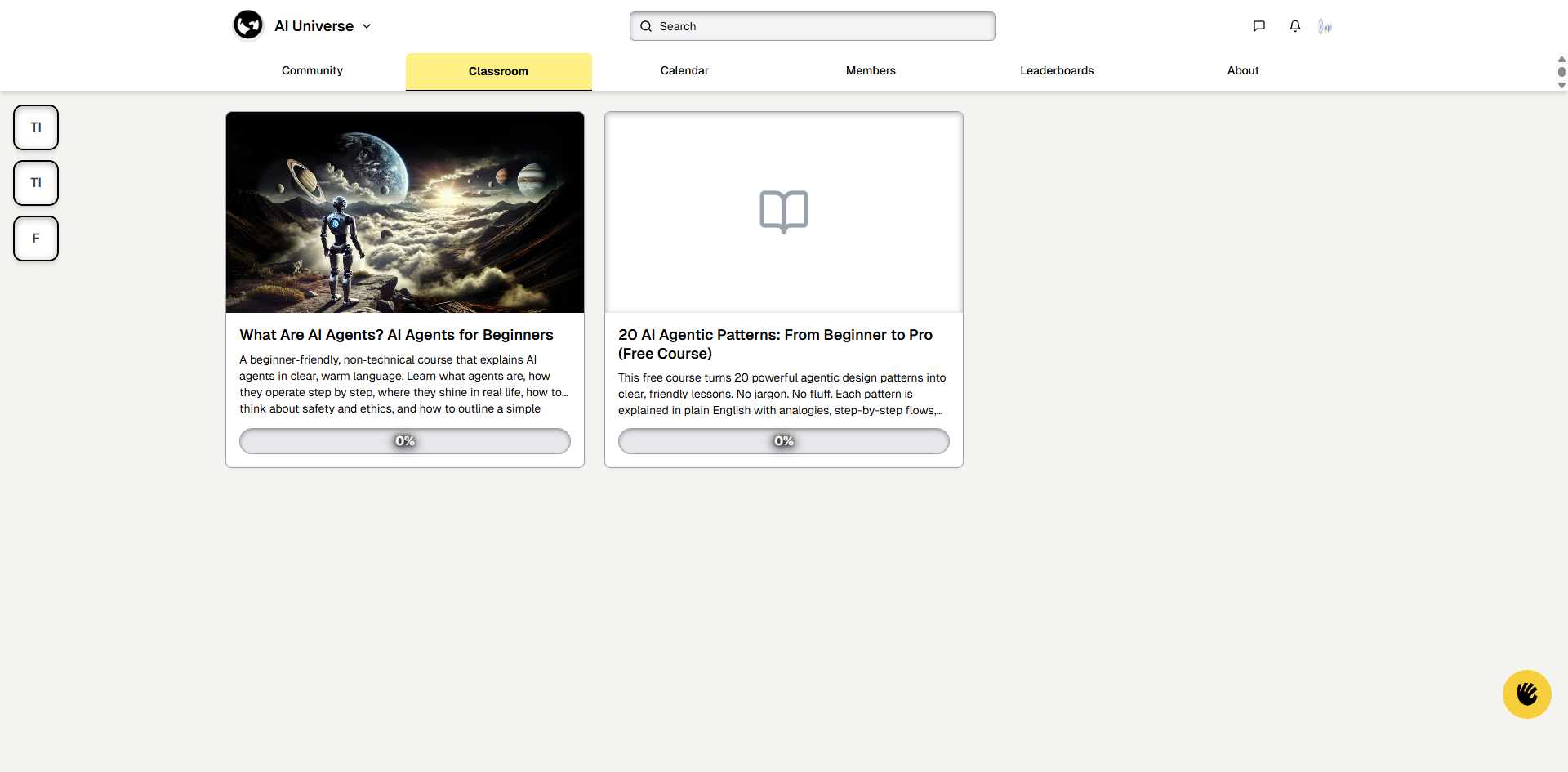
The Classroom section displays all available courses in the community.
Key Elements:
-
Navigation:
-
Classroom Tab: Active (highlighted in yellow)
-
Other tabs: Community, Calendar, Members, Leaderboards, About
-
-
Course Cards: Each course card shows:
-
Course Image: Visual representation of the course
-
Course Title: Name of the course
-
Course Description: Brief overview of what you'll learn
-
Progress Bar: Shows completion percentage (e.g., "0%")
-
Click the card to open the course
-
-
Left Sidebar:
- Quick navigation buttons to other groups
How to Use:
-
Browse available courses in the grid
-
Click on any course card to view course details
-
Check progress bars to see your completion status
-
Start a course by clicking on its card
-
Track your learning progress through the progress indicators