
Profile Settings
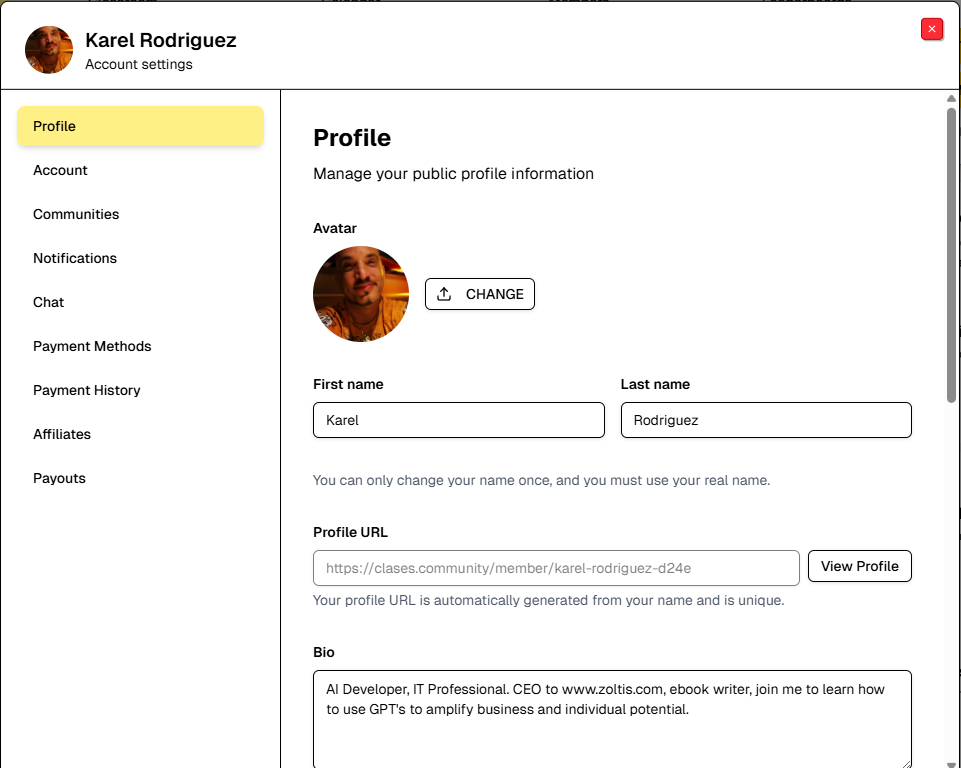
The Account Settings Dialog allows you to manage your personal information and preferences.
Key Elements:
-
Left Sidebar Navigation:
-
Communities: Manage your communities
-
Profile (Active): Profile settings - highlighted
-
Affiliates: Affiliate program settings
-
Payouts: Payment and payout settings
-
Account: Account security and settings
-
Notifications: Notification preferences
-
Chat: Chat settings
-
Payment methods: Manage payment methods
-
Payment history: View payment history
-
Theme: Appearance and theme settings
-
-
Profile Photo Section:
-
Current Photo: Displays your profile picture
-
Change Profile Photo Button: Blue link to upload/
change photo
-
-
Basic Information:
-
First Name: Your first name
- Note: "You can only change your name once, and you must use your real name."
-
Last Name: Your last name
-
URL: Your profile URL (e.g., "clases.com/
@community.clases-39ee") - Note: "You can change your URL once you've got 90 contributions, 30 followers, and been using it for 90 days."
-
Bio: Short biography (150 character limit)
- Character counter shows "9/
150"
- Character counter shows "9/
-
Location: City and country
- Placeholder: "City, Country"
-
Timezone: Your timezone
-
Placeholder: "e.g., America/
New_York" -
Current: "UTC"
-
-
-
Social Media Links:
-
Twitter/
X: Your Twitter/ X profile URL -
LinkedIn: Your LinkedIn profile URL
-
GitHub: Your GitHub profile URL
-
Website: Your personal website URL
-
-
Privacy Settings:
-
Show Community Memberships: Toggle switch
-
Description: "Allow others to see which communities you're a member of"
-
Green toggle indicates it's enabled
-
-
-
Save Changes Button:
-
Yellow/
primary button at the bottom -
Click to save all changes
-
How to Use:
-
Update your profile information in any field
-
Upload a new profile photo by clicking "Change profile photo"
-
Add social media links to connect your profiles
-
Adjust privacy settings with the toggle switches
-
Note the restrictions on name and URL changes
-
Monitor character count for bio field (150 max)
-
Click "Save Changes" to apply all updates
-
Navigate to other settings sections using the left sidebar